↵Open
Acme Deals Limited changelog
See company size in People Search with a headcount chip and a sortable column
Feature
Improvement
Find

Two updates to People Search: company headcount now shows as a compact 👥 chip, and you can add a sortable Company size column to your results.
Spot company size next to each company name
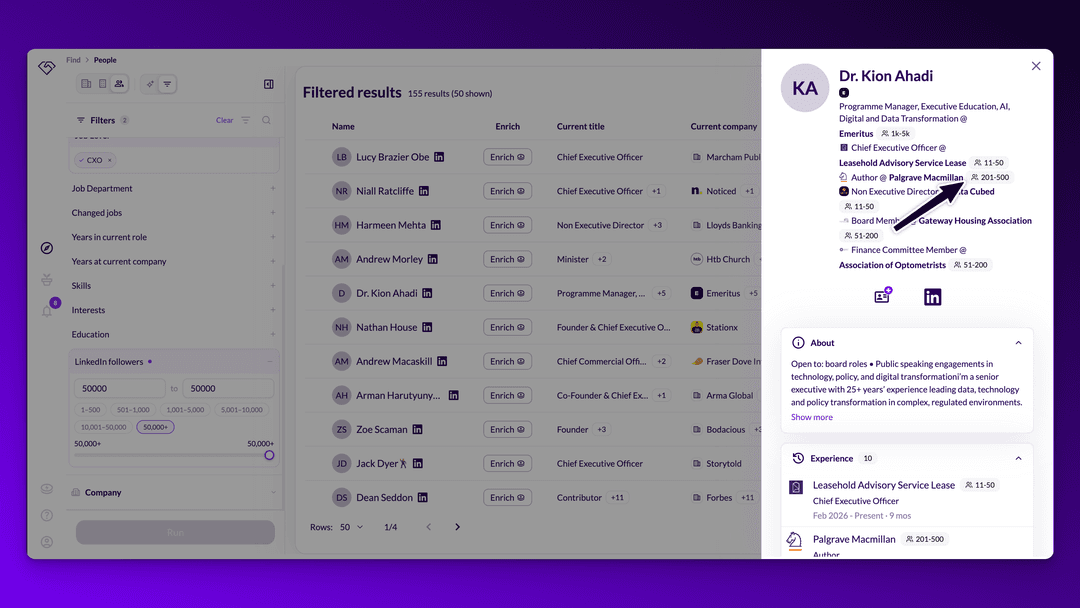
Headcount used to trail after the company name as long grey text, such as "· 1001-5000 employees". It was easy to miss and often wrapped onto its own line in the Experience list. Now it shows as a small 👥 chip with a short label, such as 👥 1k-5k, right next to the company name.
You'll see the chip in three places in Find → People:
the header of a person's profile, next to each current company
the Experience section of their profile, next to each company they've worked at
the hover list on the Current roles cell in the results table, next to each company
Larger ranges are shortened to keep the chip compact: 501-1000 shows as 501-1k, 1001-5000 as 1k-5k, 5001-10000 as 5k-10k, and 10001+ as 10k+. Smaller ranges such as 11-50 show as they are.
Full range on hover. Hover the chip to see the full range, such as "1001-5000 employees". Screen readers read out the full range too.
Ranges, not exact counts. These are the employee ranges a company lists on its LinkedIn profile, not an exact headcount.
No range, no chip. If we don't hold a range for a company, no chip shows.
Add and sort a Company size column in your results
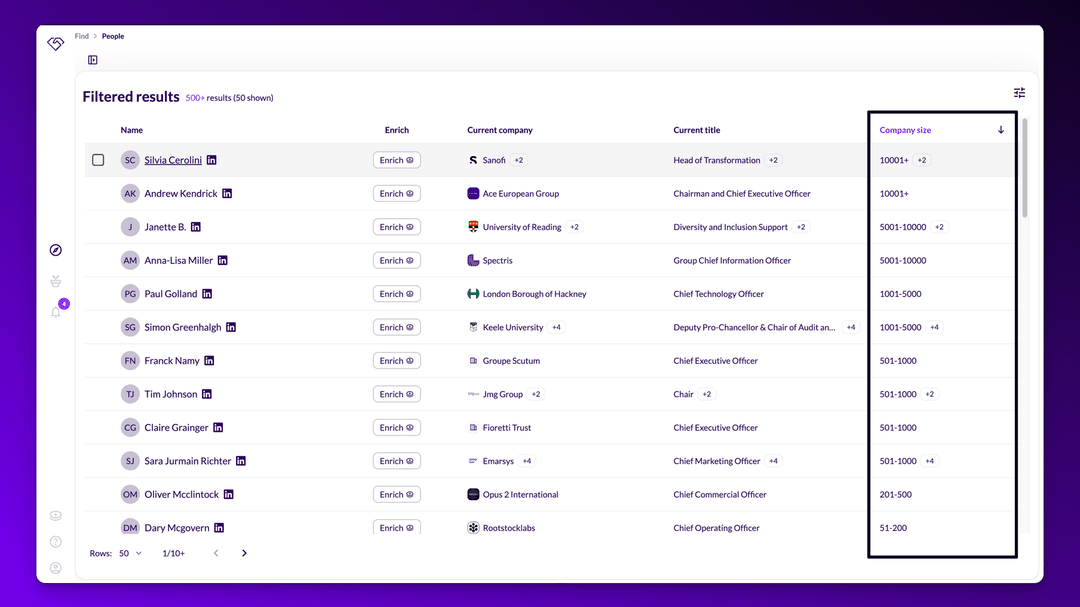
When you searched for people, such as CEOs of businesses with more than 200 employees, you had to open each person to see how big their company was. Now you can add a Company size column to your results.
In Find → People, open Column settings. A new Company section holds Current company, which used to sit under Role, and the new Company size column. Switch Company size on to see each person's current company employee range, such as 501-1000, alongside their name and title.
Click the Company size heading to sort from smallest to largest company, or the reverse. Ranges sort in the right order, so 501-1000 comes before 1001-5000.
Hidden by default. Company size is off until you switch it on in Column settings.
More than one current role. The column shows the first company's range with a +N badge, as Current company does. Hover the cell to see every current role and its range.
Ranges, not exact counts. These are the employee ranges a company lists on its LinkedIn profile. They match the options in the Number of employees filter.
No range. If we don't hold a range for a person's company, the cell shows "—".
Applies to People Search in Find only. Company Search and target lists are unchanged, and the Number of employees filter keeps its existing labels.