
↵Open
Acme Deals Limited changelog
Map a file to a target list, re-import your exports safely, and get notified when your companies move
Feature
Improvement
Fix
Nurture
Notifications
Three updates for Nurture: a shorter way to add companies to a target list from a file, a fix so re-importing a Handshaik export no longer adds the wrong company, and notifications when your companies change stage or you're assigned to them.
Add companies to a target list from a file, check every match, then undo
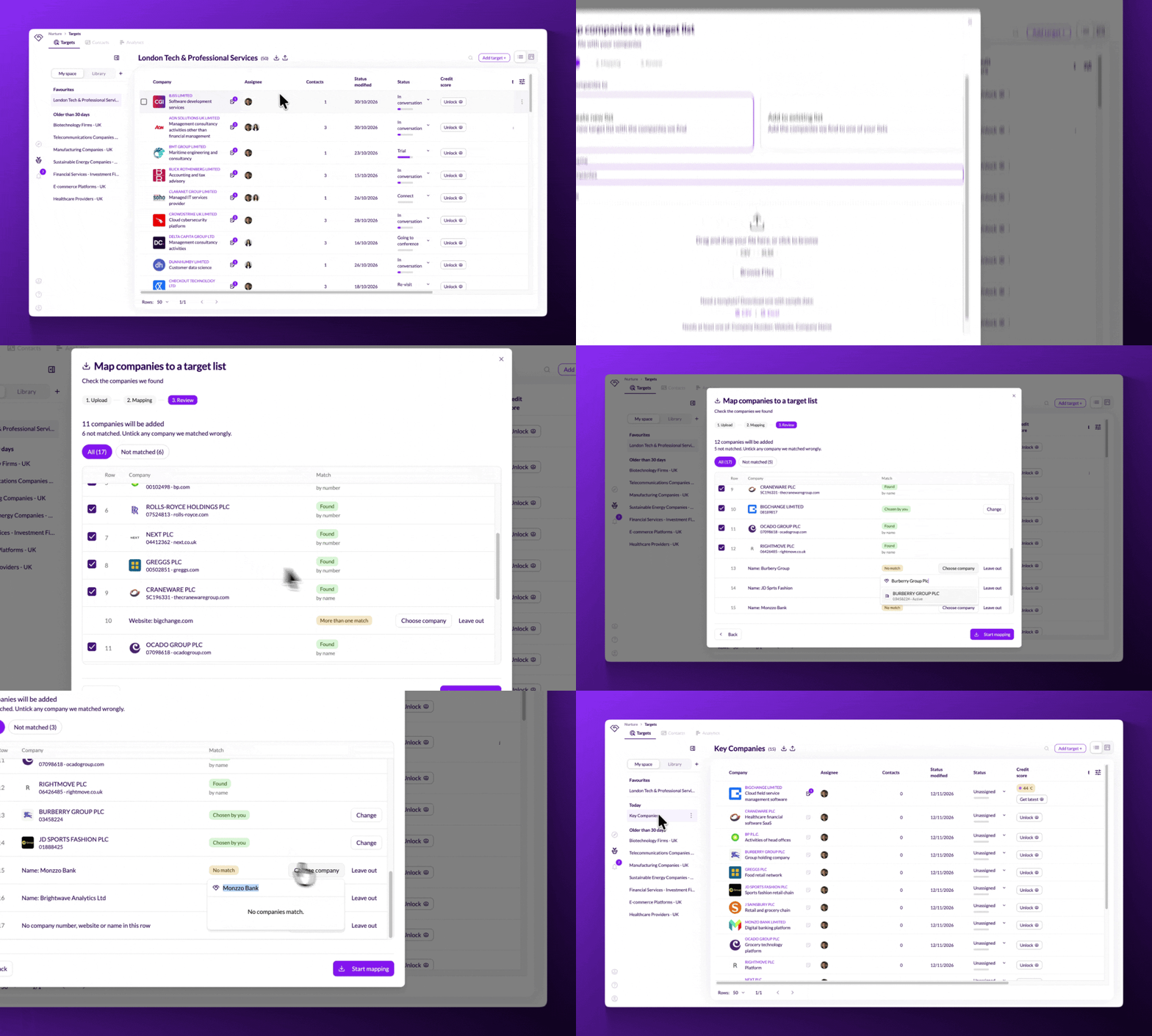
Adding companies to a target list from a file used to feel like a full data import, with six steps, a warning for every unmapped column, and a merge strategy that did nothing. Yet it only ever found companies that already exist in Find. Now it's a short mapping flow. You tell us which columns identify each company, check every match before anything is added, and undo it afterwards if something's wrong.
On a target list, select Add target + → From a file and choose your file. Pick the columns that hold the Company number, Website, and Company name. One is enough, and company number is the most accurate. We suggest a column for each and show the first few values, and any other columns are ignored with no warnings.
Before anything is added, you see every row next to the company we found for it. The heading shows how many companies will be added, how many are already on the list, and how many didn't match. Filter by All, Not matched, or Already on this list. Untick a wrong match, or select Choose company to search for the right one when a row shows No match or More than one match.
Select Start mapping and carry on working while we add the companies in the background. When it's done, the Companies added to your target list notification has an Undo button. Account → Import & export lists every mapping with its file name, companies added, and unmatched rows, plus Open list and Undo.
To finish off unmatched rows later, select Review next to the mapping. Find the right company for each row or dismiss it. Your decisions are kept, so you can stop and come back. Download unmatched rows still gives you every unmatched row with your original columns.
Your file never changes company data. We only use it to find companies in Find and add them to your list.
How we match: company number first, then website, then company name. If a website or name belongs to more than one company, we match only when exactly one is active, otherwise you'll see More than one match. Group websites such as Tesco usually end up here.
Undo only removes what that mapping added. Only people who can edit the list can undo, and mappings made before this release can't be undone.
Re-import a Handshaik export without adding the wrong company
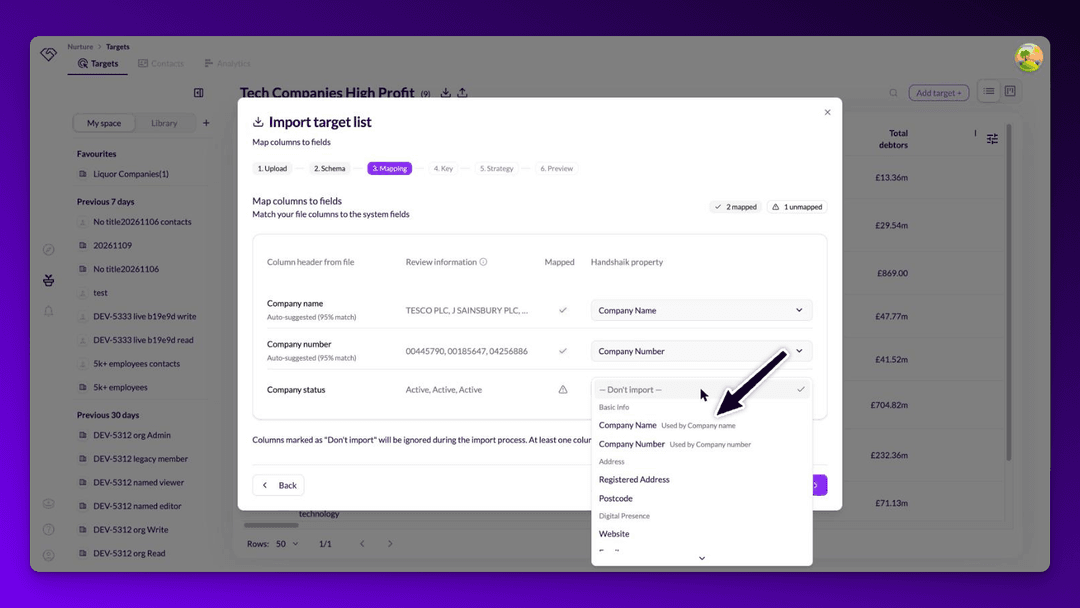
If your file had a Company status column, such as a target list exported from Handshaik, the import wizard also suggested it for Company name. Accepting the suggestions turned every name into 'Active', so rows without a company number matched a real company like 'ACTIVE LIMITED' while the import still reported success. Now each field can only come from one column. Re-import your own export with the suggested mappings and Company status stays unmapped, so only the companies in your file are added.
When you map by hand, a field another column already uses can't be picked again. If a mapping ever points two columns at one field, the import stops with a message naming both columns. Rows that don't match now show as Unmatched, ready for Download unmatched rows.
Already imported a file like this? Check the list for an unexpected company called 'Active …', remove it, and re-import the file.
Get notified when your companies change stage or you're assigned to them
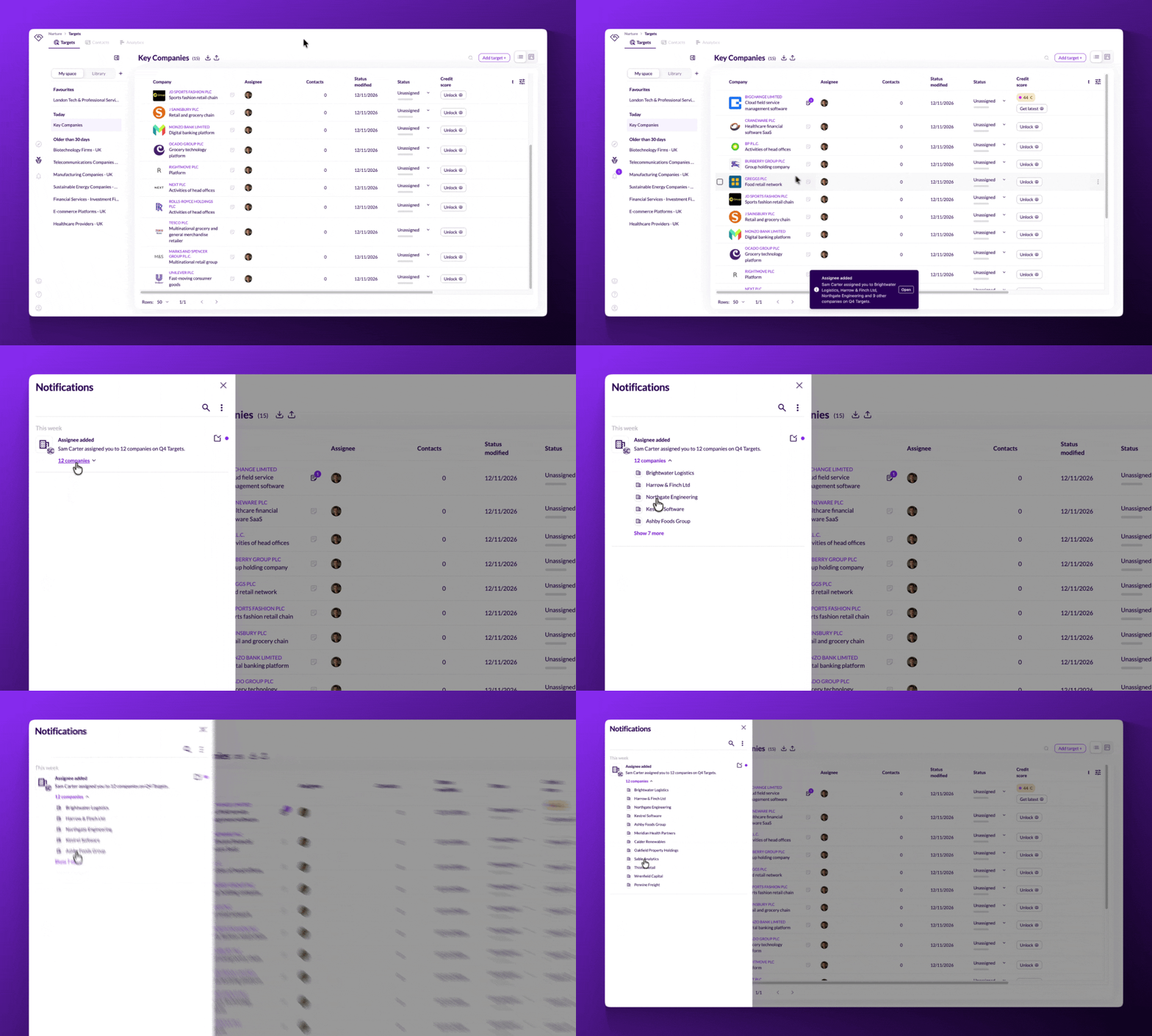
When a colleague moved one of your companies to a new stage, or assigned companies to you, nothing told you until you next opened the list. Now you get an in-app notification for both.
When someone moves a company you're assigned to into a different stage, closes it, or reopens it, the notification names who made the change, the company, its new stage, and the list. For example: 'Sam moved Acme Ltd to Proposal on Q4 Targets'. Closed companies show the outcome too. Select the notification to open the list, filtered to that stage.
If one person moves several of your companies on the same list in quick succession, you get a single toast that names them all. When someone assigns you to companies on a target list, or removes you, you get one notification for the whole action. In the notifications drawer, select N companies to see which ones: the first five are listed, and Show N more loads the rest.
Your own changes don't notify you.
Both types are on by default. Turn each off separately in
Account → Notifications.Moving every company out of one stage into another across your organisation, for example while reorganising stages, doesn't notify assignees.
Applies to company target lists in Nurture. The one-column-per-field fix also covers contact imports, which otherwise still import your data in full. People lists don't get notifications yet.