
↵Open
Acme Deals Limited changelog
Build target lists of people and add notes from a company's row menu
Feature
Improvement
Nurture

Two updates in Nurture: you can now build target lists of people, not just companies, and open a company's notes straight from its row menu on a target list.
Build target lists of people, not just companies
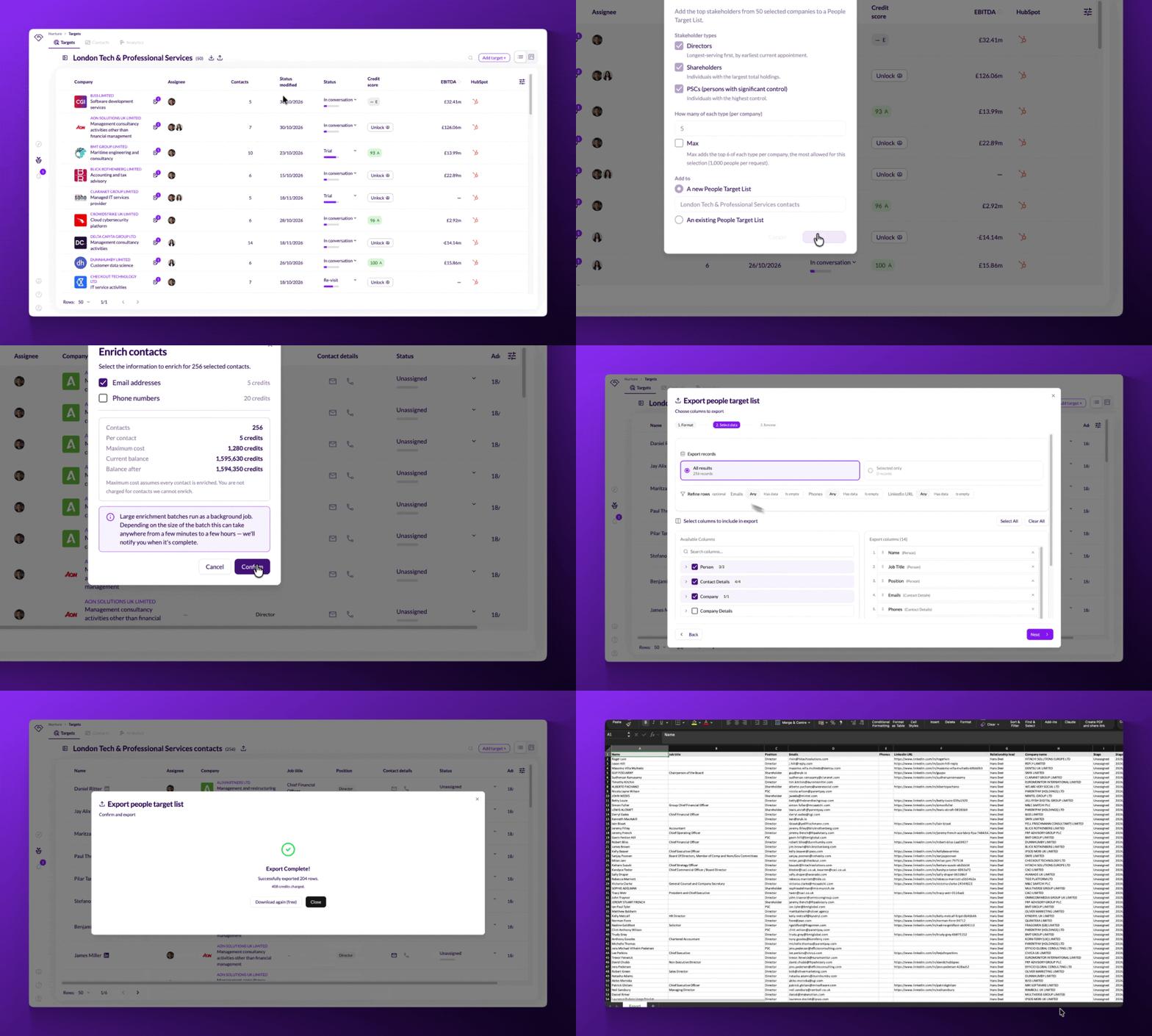
Target lists in Nurture held companies, so the people you needed to speak to lived in a spreadsheet or across contact records. Now you can build people target lists, fill them from your company target lists or People Search, enrich their contact details, and work them through the same stages as your company lists.
Start a list. In My Space, select + → New people list. Your company and people lists sit together in the sidebar. Library → People shows My people target lists, All people target lists, and every person across them under My people and All people.
Fill it from your company target lists. Select the companies you want and choose Add to people target list. Pick Directors (ticked by default), Shareholders, or PSCs (persons with significant control), how many of each per company (one to 50, five by default, or Max for everyone), and a new or existing list. To turn a whole managed company list into a people list, open its sidebar menu and select Create people target list. Each person appears once per company, with a Position chip for every role they hold.
Add someone from People Search. In Find → People, select Add to people target list on a result or from the person's sheet. Confirm which company they work for (we suggest one when we can), then pick a list or create a new one. If the person isn't a contact yet, we create the contact for you. To add someone who's already a contact, use Add target + on the list.
Get their contact details. People without an email or phone number show Enrich in the Contact details column. Open the row menu, select Enrich contact, and choose Phone + Email, Phone only, or Email only. To enrich several people, select them and choose Enrich contact information. You see the maximum cost and your balance afterwards before you confirm, and you're only charged for contacts we enrich.
Work the list your way. People lists have the same Table and Kanban views and stages as company lists. In Table, open Column settings to show, hide, and reorder columns, and sort and filter by company, job title, position, relationship lead, and more. In Kanban, drag people between stages. Select a name to view, edit, enrich, or delete the contact without leaving the list.
Share out the work. When you add someone to a list, you become their assignee. Select people and choose Change assignee to make a colleague the Sole assignee or add them as a Co-assignee. Assignees get an in-app notification when they're assigned or unassigned, and when someone moves, closes, or reopens one of their people. To share the list itself, select Share in its menu to add editors and viewers, transfer ownership, or set Organisation access.
Export a call list. Select Export to download the whole list or just the people you've selected. Choose from person, contact details, company, company details, company financials, and stage and status columns, including each person's assignees.
Removing isn't deleting. Removing someone from a list leaves their contact record as it is.
People Search adds one person at a time, and the person needs a LinkedIn profile.
Add a note from a company's row menu
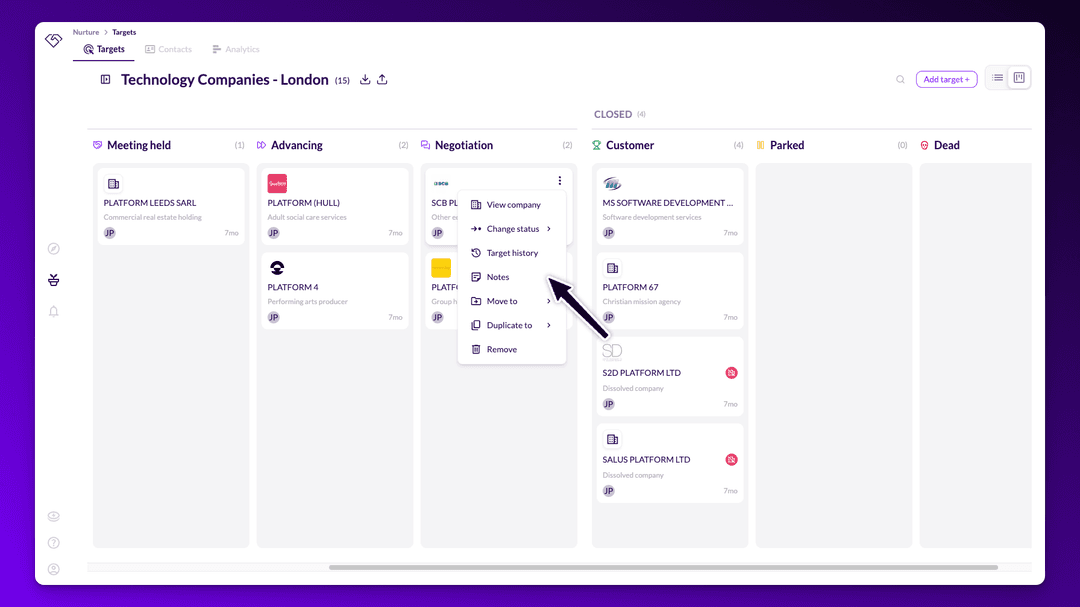
To write a note about a company on a target list, you had to find the small notes icon in the Notes column or open the company. Now you can open the ⋮ menu on any row, or on a company card in the Kanban view, and select Notes. The notes panel opens with the company's note history. Select Create Note to add one, and the count in the Notes column updates straight away.
Notes belong to the company, not the list, so a note you add here shows on that company everywhere, including its company page and other lists it's on.
Create people target list from the sidebar menu works on managed company lists only. On other lists, select the companies and use Add to people target list.