
↵Open
Acme Deals Limited changelog
Import contacts straight into people target lists and add contacts in bulk
Feature
Nurture

Two updates make it faster to build people target lists in Nurture: you can import contacts straight into a list, including from LinkedIn profiles, and add several contacts to a list at once from the Contacts page.
Import contacts straight into a people target list
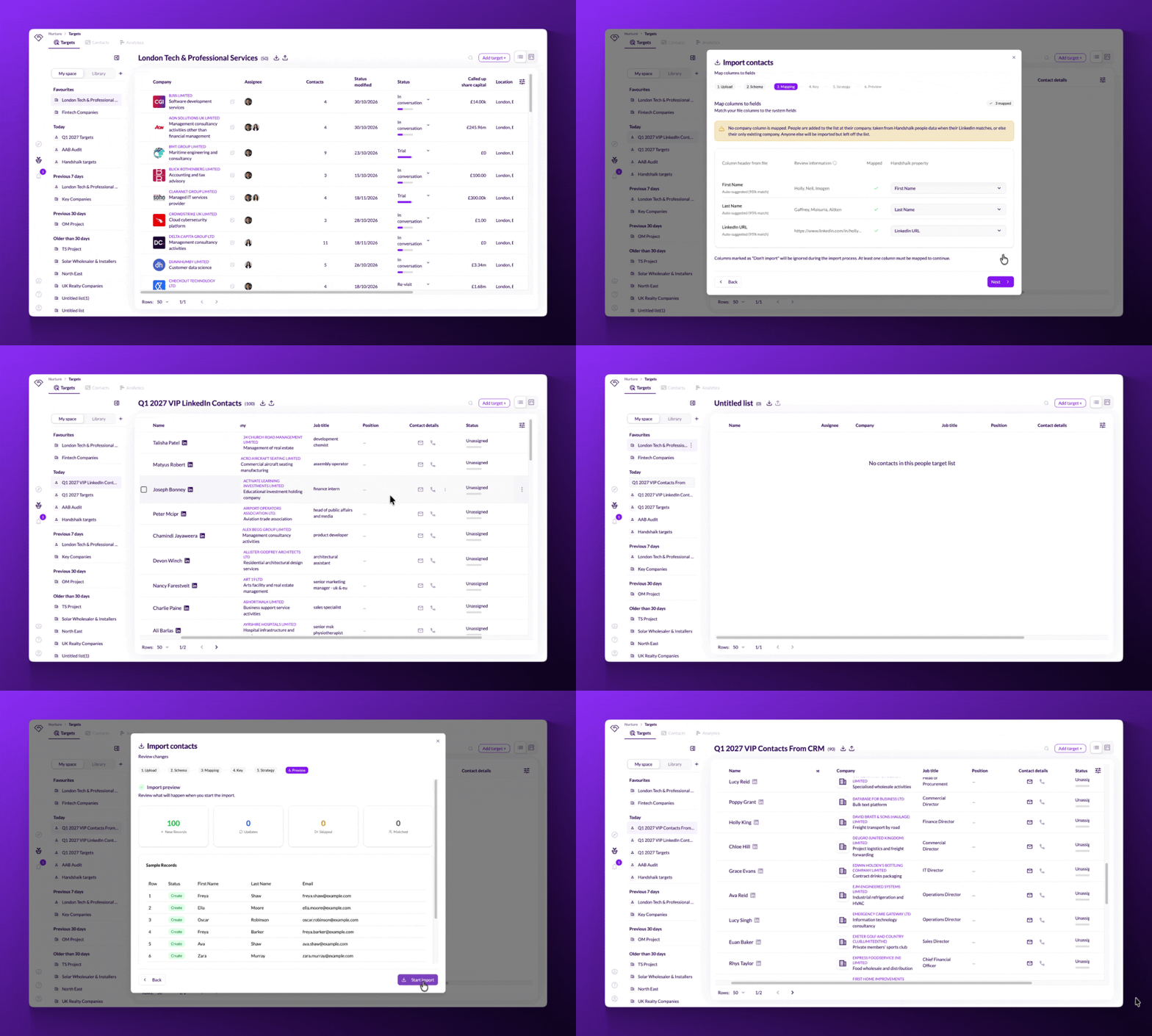
Importing contacts and building a people target list used to be two separate jobs, and a file of LinkedIn profiles gave you contacts with only a name and a link. Now you can do both in one go, and a LinkedIn profile is enough.
Open a people target list, select Add target +, then From a file, or select the import icon next to Export. Upload your CSV or Excel file and map the columns as you would for any contacts import. Everyone in the file is added to your contacts, then to the list, which is already chosen under Also add to people list.
You can also pick a list when you import on Nurture → Contacts. On the first step, choose a list under Also add to people list, or leave it on Don't add to a list to import contacts the way you always have. Only lists you can edit are offered.
Import from LinkedIn profiles. Match on LinkedIn URL and a file of names and LinkedIn profiles is enough. When a profile matches someone in Handshaik's people data, we fill in their job title, location, skills, and current company, so you don't need a company column. We only fill in what your file leaves empty and never overwrite details a contact already has. This is free, and phone numbers and emails still come from Enrich.
When the import finishes, you see how many people were added to the list, how many were already on it, how many we couldn't add because we couldn't find their company, and how many we filled in from people data. The same summary stays in Account → Import & export, with Open list to jump to it. Changed your mind? Select Undo on the import to take off the list only the people it added, while keeping the imported contacts.
People are added at a company. We use the company in your file first, then the company from people data, then the person's only company in Handshaik. If we can't choose one, they're imported as a contact but left off the list, and the mapping step warns you if you haven't mapped a company column.
No duplicates. People already on the list stay as they are and are counted separately.
Existing lists only. To import into a new list, create the list first.
Add several contacts to a people target list at once
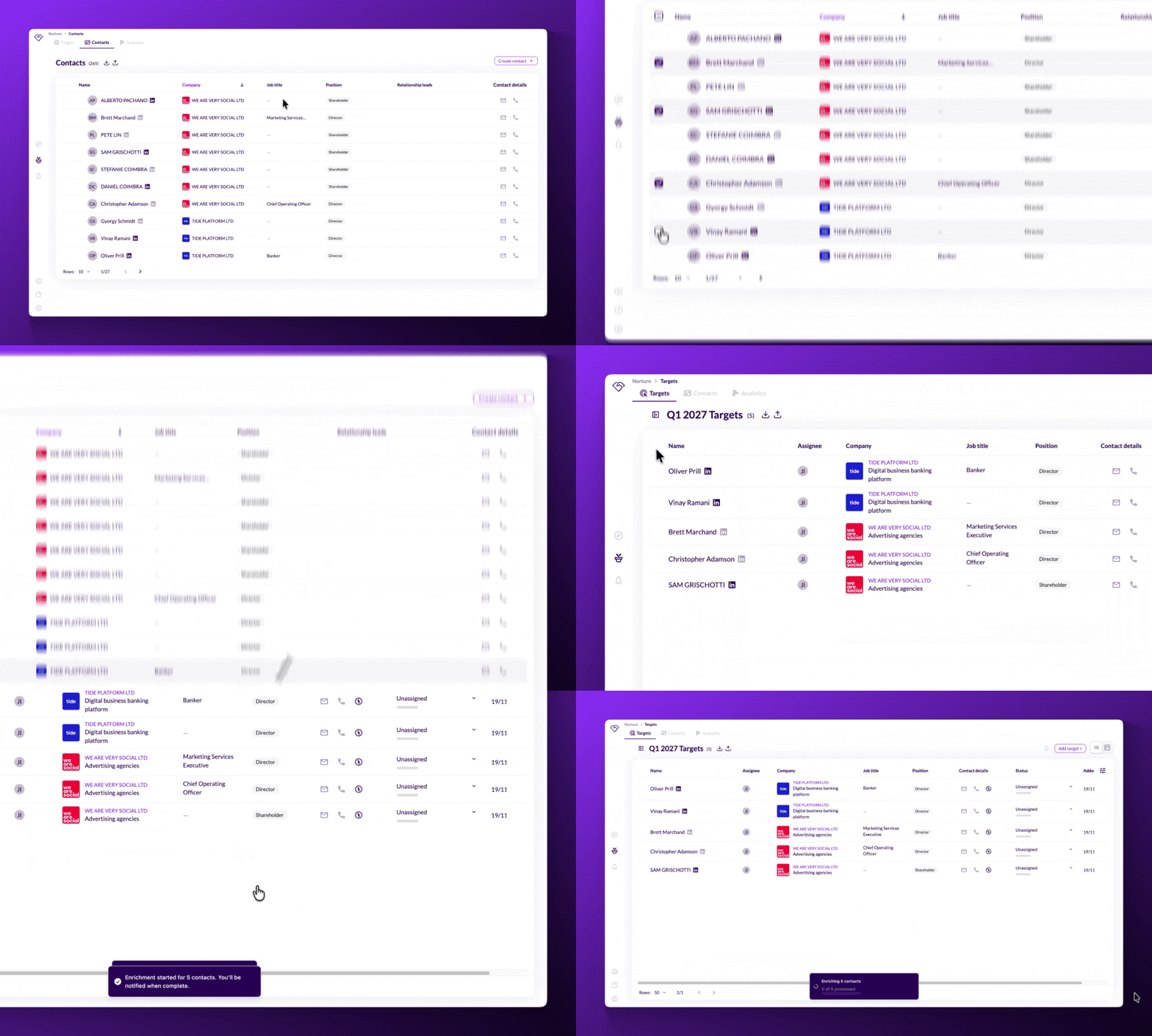
On the Contacts page you could enrich or delete a selection, but getting 20 contacts onto a people target list meant adding them one by one. Now, on Nurture → Contacts, tick the contacts you want or select every contact that matches your search. Choose Add to people list in the bar that appears, then pick a list you can edit. A message tells you how many people were added.
People are added at their current company. Contacts with no company are skipped, and the message tells you how many, so you can link them to a company and try again.
No duplicates. People already on the list stay as they are.
Up to 50,000 at a time, the same limit as enriching contacts.
To add people from Find → People, use Add to people target list on each result.