
↵Open
Acme Deals Limited changelog
Download any past invoice, buy credits with your saved card, and get error reports for partly failed imports
Feature
Improvement
Fix
Billing & Credits
Nurture
Three updates this time: every invoice and receipt is now in your billing history, credit bundles charge your default card straight away, and you can download an error report whenever any rows in an import fail.
Download any invoice or receipt from your billing history
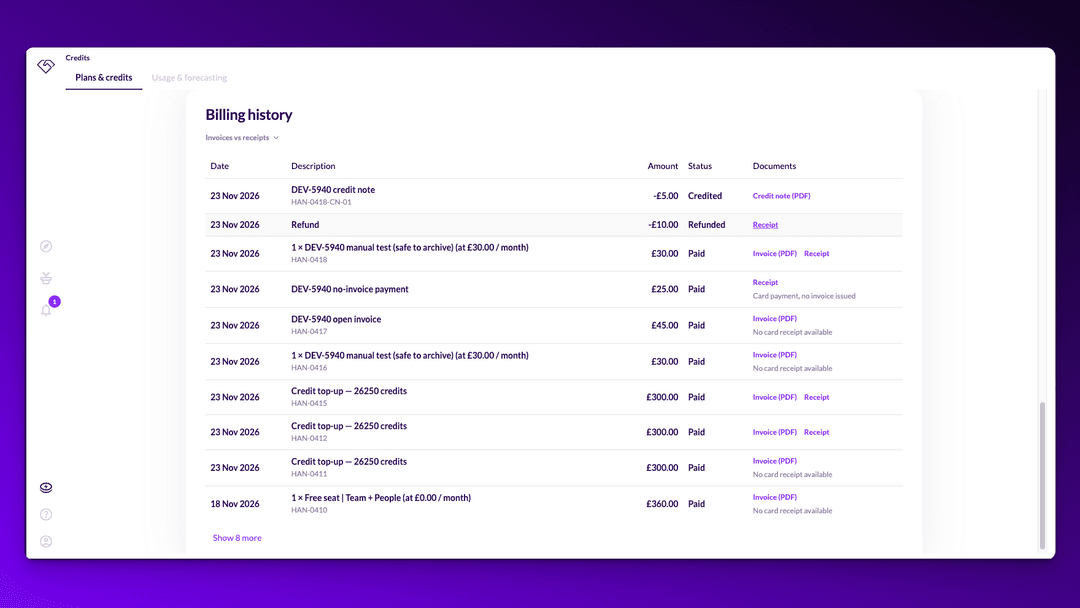
Download invoice only ever opened your most recent invoice, so you couldn't get last quarter's renewal invoice or an older top-up receipt from the app. Now every invoice, receipt, and credit note your organisation has had is listed under Billing history on Credits → Plans & credits, replacing the Download invoice button.
Each payment, renewal, plan change, top-up, refund, and credit note has its own row, showing the date, what it was for, the amount, and whether it's paid. The newest is at the top, and Show more takes you further back.
Each row offers the documents it has. Invoice (PDF) is the bill, with the VAT and our company details, for your accounts. Receipt confirms that a card payment went through. An unpaid invoice shows View & pay instead, and a credit shows Credit note (PDF).
Most payments have both an invoice and a receipt. When a row has only one, it tells you why:
Invoice but no receipt: the invoice hasn't been paid yet, or wasn't paid by card. Once it's paid by card, its receipt appears.
Receipt but no invoice: this is a one-off top-up bought before this release. New top-ups come with an invoice too. For an invoice for an older top-up, contact [email protected].
Refunds have no separate document. The original receipt is updated to show the refund.
Billing history is visible to your organisation's admins, the same people who manage payment methods.
Buy a credit bundle with your default card
Buying a one-off credit bundle used to send you to a payment page to enter your card details again, even when you'd saved a single-purchase default. Now go to Credits → Plans, choose a bundle, and select Buy. You'll see the amount including VAT and the card that will be charged, for example Visa •••• 4242. Confirm, and the credits go straight into your balance.
Choosing the card: under Payment methods, use Set as single-purchase default on any saved card. The first card you add becomes the default automatically.
Paying another way: choose Use a different card to go to the payment page, where you can also enter a promotion code.
Payment page fallback: if your bank asks you to approve the payment, or you've removed your default card, you'll finish on the payment page.
Download the error report when some rows in an import fail
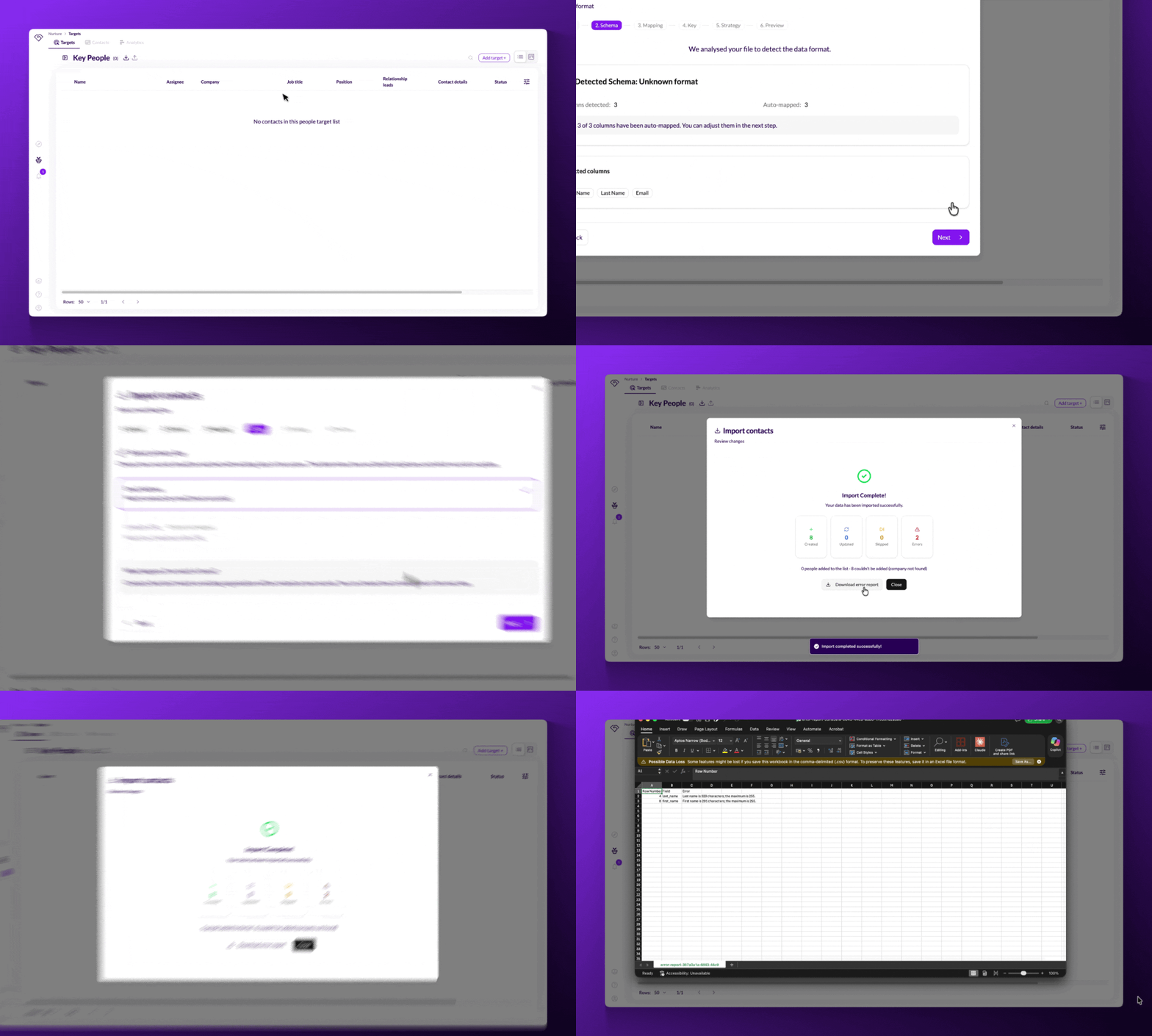
When some rows in an import failed, the summary showed an error count and nothing else, and the error report was only offered when the whole import failed. Now the summary shows how many rows were created, updated, skipped, and failed. If any failed, select Download error report to get a CSV listing each failed row, the field at fault, and the reason, for example 'Last name is 300 characters; the maximum is 255.'
You can also download it later. Go to Account → Import & export, select the download icon on the import, and choose Error report next to the original file.
Rows are numbered from your file, with row 1 as the first row under the headers, so you can fix the failed rows and import just those again. Failed rows don't undo the rows that imported successfully.
Payment methods and auto top-up are unchanged, and plan and seat purchases still go through the payment page. Error reports apply to contact and target list imports.